Intel, Asus, Cooler Master, Corsair Memory, Dell, Compaq, Gigabyte, Mercury, zebronics, AMD, Nexus, Delta, IBM, HP, Apple, Acer, BenQ, Sony, Samsung, LG, Philips, Transcend, Nvidia, SiS, Logitech, Alps Electric Corporation, Creative Technology, ASRock, Asus

Blog Archive

Monday, 6 December 2010

Sony Soutina .... Very Impressive


First seen as a concept a year back, Sony's tubular speaker is set to go into production under the name the Sony Soutina.

This gorgeous speaker from Sony uses transparent organic glass to make up the tubing which vibrates and expands the sound to 360 degrees. The Soutina speaker has a frequency response of 50Hz – 20,000Hz.

the Soutina speaker features :-

  • Frequency response of 50Hz – 20,000Hz
  • Input line, coaxial, and optical connectivity
  • Subwoofer (13cm)
  • Medium speaker (7cm)
  • Tweeter made of organic glass
Not cheap though - a whopping 6,500 Euros.

HP HDX16, HDX18 Entertainment Laptops

HP has announced the HP HDX16 and HDX18 entertainment notebook PCs, featuring high-definition playback support, built-in TV tuners, Blu-ray technology, and a new chassis design.

Both notebooks include built-in Wi-Fi networking, along with home-theater-quality audio/video options that include Altec Lansing speakers, an HP Triple Bass subwoofer and Dolby Home Theater software.

The HDX16 is a midsize notebook with a 16-inch diagonal widescreen with 720- or 1,080-pixel resolution display. The HDX18 is a powerful and visually captivating full-size notebook with an 18.4-inch diagonal Ultra BrightView 1,080-pixel screen and enthusiast-class graphics capabilities.

Additionally, the HP HDX notebook PCs feature HP MediaSmart, which allows consumers to enjoy photos, listen to music and watch movies in high definition.

The HP HDX16 starts at $1,299, while the HP HDX18 starts at $1,549. Both are expected to be available starting later this month.

CompuLab’s Fit-PC Slim: Tiniest Windows XP system

Compulab has introduced a fanless PC, roughly the size of a paperback book, that consumes a mere 3 to 5 watts of power. The "fit-PC" comes with Linux preinstalled, and is intended to fit where conventional PCs won't, according to the Haifa, Israel-based company.
Compulab says the fit-PC is based on the company's CM-iGLX computer-on-module (COM), touted as the world's smallest LX800-based single-board computer when it was introduced last fall. The module has a 500 MHz AMD Geode LX800 processor, and is equipped with 256 MB of DDR RAM and up to 512 MB of NAND flash.

Compulab lists the following additional features and specifications for the fit-PC:

  • 40 GB hard drive
  • Dual 100 Mbps Ethernet
  • SXGA graphics controller, resolution to 1920 x 1440
  • 2 USB 2.0 high speed ports
  • Audio in/out interfaces
  • RS-232 serial port
  • Single 5V power supply
  • Dimensions -- 4.7 x 4.6 x 1.6 inches (120 x 116 x 40 mm)
Although the fit-PC comes with Linux pre-installed, Windows XP is "easily installable" via a USB CD-ROM drive, Compulab said. The system's embedded Linux OS reportedly is currently based on Gentoo, using a 2.6.20 kernel.


Thursday, 2 December 2010

PC/Computer/Desktop Assembling - Know the components

Did you try to assemble a PC?

Ever wondered whether you can assemble a system on your own? I could say for sure you couldn't have tried it as you think it is as hard as performing a Micro-processor involved lab experiment. YES IT IS. But just with connecting and disconnecting, it makes your world easy when you face any hardware problems with your Desktop.

You can try once for sure, if you are sure enough that it gets you some experience even if you lose some bucks.


Coming to the part of assembling a system, you have the following list of things you gotta get ready with before proceeding.

  • Screw driver (both flat and star)
  • Obviously a table which is optional
  • a cutting plier to cut some pieces if required.
  • And
  • and
  • Errrrrr!!!! what about the parts of a computer?
  • Monitor (LCD or CRT)
  • Keyboard
  • Mouse
  • Cabinet
  • two power cables
  • UPS (Uninterrupted Power Supply)
  • The most important parts, Hard disk, DVD RW, RAM, Motherboard, Micro processor, Ethernet card (for internet connection), connecting cables (bus), SMPS (Switched Mode Power Supply). All these are to be fitted into the CPU (Central Processing Unit). And the main power supply is to be grounded to avoid short circuit damages.
The following are the pictures of the items required, that I have mentioned in the above list.

SMPS (Switched Mode Power Supply). This is the device that supplies power to the whole CPU. While for some SMPS' s there is a slot given to connect to monitor also.


This is the present generation hard disk The SATA Hard drive - which operates in serial and thus named after it. These hard disks are lower in cost than the previous Parallel ATA hard drives. These hard disks have good data transfer rate.
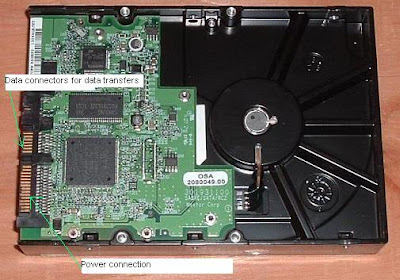

The SATA Data cable that is given to you along with the Hard disk to connect to the hard disk. The terminals normally look like this. The one end of this cable fits into the data transfer cable of the hard disk and the other end goes to the sata connector on the mother board.
The connection of the hard disk to the SATA cable is generally shown as below


This is the motherboard which is called the HEART of the computer, where your calculations (2+1=?), 365*8658=? or what so ever are done through this motherboard. A processor is fit into this board into Socket A Connector.
Micro processor:
This is the brain of the CPU. All the calculations, and every process that is implemented in a computer undergoes the involvement of the microprocessor, generally called PROCESSOR. You have various types of processors depending upon your requirement like multimedia, software implementation, games, systems used for internet cafes, developing some application and so on. Each requirement comes up with one configuration in precise. But that much precision is not needed to be followed.

This chip is to be embedded into the Socket A Connector shown in the Motherboard picture very carefully, very very carefully.
Generally in any job, after improving your skillset, you will be habituated with the same work that you carry on. And so what you do later? The same work that you do daily which does not need any heating up of brains. But in a computer, you do the same work that you do daily, it needs to run its brain resulting in heating up of the processor. So it needs a coolant, that does not mean you put a coolant oil on that. There is a coolant device (heat sink) that blows air onto the processor which inturn cools the processor. You can find the coolant fan in th below picture. It is to be fitted with care.


OK now you are familiar with something that runs your computer. Consider in your day to day life, What will be your routine from the time you wake up to the time you go to bed? you are going to do some things right!!!! if you do nothing daily, you are not considered a human.

So the daily routine will be done using your sub conscious mind since the total timetable is filed in your brain and all the routines will be done without any external input.

In the same manner, for maximum all the processes that are implemented in a computer, their temporary addresses are stored in the small cache memory called RAM (Random Accessible Memory). The more the memory is, the more number of processes you can perform flexibly.


Do you have DVDs to watch a movie in a computer and dont have a player to play the movies??? LOL thats very pitying. Go get a SATA DVD RW that can play movies, create movie DVDs, Mp3s, games, and what not???? Everything with your PC.

If there is no power cut in your area and there are regular check ups which mat result in 10 - 20 minutes of power cut, why not you go for a UPS that gives you a 20 minutes full of entertainment, and time to save documents that are yet to be completed. UPS (Uninterrupted Power Supply) which gives power back up of some time that is depended upon the size of the monitor that you use.

One of the external devices that is of very interactive with the computer is the so-called mouse. It helps us to select teh optins we want.

Documentation, letter, spread sheets, what not? can you do that with out a QWERTY keyboard?


Ahh!!! Without a monitor, nothing is possible except running a server which is offline and only a gateway. Watch movies, play games, and everything.


This is required to manage some connections.


Every desktop needs some place and the place to be filled with a computer table. Without a computer table, if a computer is set up, it looks un-organised. isnt it?????????


The total process of assembling a computer needs a small thing called Screw Driver, used to fit nuts, boards, disks and all.

Assembling a computer - main procedure

I guess by now you must have understood the importance of all the parts of the computer. Now comes the main part of assembling the total components into one system that is called the COMPUTER.

Though very tedious job to do, assembling is an interesting task. You should have a lot of patience to do this. I am mentioning the procedure for now and later on when i assemble a system, i will take the photographs and keep you updated.

  1. Open the cabinet, take all the screws out. NOTE: Place all the screws in one place, and remember which screw did you take out and from where? otherwise this is going to drive nuts out of your brain.
  2. First of all group all the components that are to be kept together like the hard disk and cable, DVD drive and cables, and the important one is motherboard and the processor.
  3. Now let us fit the microprocessor into the motherboard and proceed further.
  4. It is better recommended that you take the help of any hardware person to embed the processor into the motherboard. And if you wanna do it by yourself, try to dare new things and go on. Below is a picture of modern day motherboards
  5. Handle both the motherboard and processor with care. Assure that there are no other things surrounding them and just have a grasping look at the processor pins and the socket in the motherboard where you will have to place the processor. check the picture below for you to get the exact picture.
  6. More appropriate picture:
  7. Just match the corners so that the processor fits into the socket without any difficulty. Re-assure there are no gaps between the processor and the socket. if so, that is going to be a mess. Fit the processor into the socket and leave it for some fraction of seconds. And you will have a metal cover in the modern motherboards to lock the processor as shown in the figure below.
  8. Take the Heat sink (coolant fan) for the microprocessor and assure that you place that in correct position and Just lock the heatsink on two sides where it has clips. You can understand by the below pictures.
  9. The heat sinkThe clipping at the sided of the heat sink. Sorry to copy the pictures from other sites. I will upload more appropriate pictures soon.


This the the picture of the motherboard fitted with the processor and heat sink.


13. Now the main part is ready. Now have a look at the inner sides of the cabinet and back side.
The motherboard has slots to pin in the mouse connector, So the assembly will be as shown in the figure below

If at all you are aware of the normal power sockets, you can analyse the power pins that come from the SMPS and there are main connections that are to be done from SMPS to motherboard. you should be aware of that connections. I will post all of them in the next post with a neat workout diagrams.

Better overview on the typical computer hardware.

Typical PC hardware

Hardware of Personal Computer.
1. Monitor
2. Motherboard
3. CPU
4. RAM Memory
5. Expansion card
6. Power Supply
7. CD-ROM Drive
8. Hard Disk
9. Keyboard
10. Mouse
Inside a custom computer.

Though a PC comes in many different form factors, a typical personal computer consists of a case or chassis in a tower shape (desktop) and the following parts: You can find out more at http://www.hardware.com/

Motherboard

The motherboard is the "brain"[citation needed] of the computer. Components directly attached to the motherboard include:

  • The central processing unit (CPU) performs most of the calculations which enable a computer to function, and is sometimes referred to as the "brain" of the computer. It is usually cooled by a heat sink and fan.
  • The chipset mediates communication between the CPU and the other components of the system, including main memory.
  • RAM Stores all running processes (applications) and the current running OS. RAM Stands for Random Access Memory
  • The BIOS includes boot firmware and power management. The Basic Input Output System tasks are handled by operating system drivers.
  • Internal Buses connect the CPU to various internal components and to expansion cards for graphics and sound.
    • Current
    • Obsolete
      • ATA (superseded by SATA)
      • AGP (superseded by PCI Express)
      • VLB VESA Local Bus (superseded by AGP)
      • ISA (expansion card slot format obsolete in PCs, but still used in industrial computers)
  • External Bus Controllers support ports for external peripherals. These ports may be controlled directly by the southbridge I/O controller or based on expansion cards attached to the motherboard through the PCI bus.

Power supply

Includes power cord, switch, and cooling fan. Supplies power at appropriate voltages to the motherboard and internal disk drives. It also converts alternating current to direct current and provides different voltages to different parts of the computer.

Video display controller

Produces the output for the visual display unit. This will either be built into the motherboard or attached in its own separate slot (PCI, PCI-E, PCI-E 2.0, or AGP), in the form of a graphics card.

Removable media devices

  • CD (compact disc) - the most common type of removable media, suitable for music and data.
    • CD-ROM Drive - a device used for reading data from a CD.
    • CD Writer - a device used for both reading and writing data to and from a CD.
  • DVD (digital versatile disc) - a popular type of removable media that is the same dimensions as a CD but stores up to 12 times as much information. It is the most common way of transferring digital video, and is popular for data storage.
    • DVD-ROM Drive - a device used for reading data from a DVD.
    • DVD Writer - a device used for both reading and writing data to and from a DVD.
    • DVD-RAM Drive - a device used for rapid writing and reading of data from a special type of DVD.
  • Blu-ray Disc - a high-density optical disc format for data and high-definition video. Can store 70 times as much information as a CD.
    • BD-ROM Drive - a device used for reading data from a Blu-ray disc.
    • BD Writer - a device used for both reading and writing data to and from a Blu-ray disc.
  • HD DVD - a discontinued competitor to the Blu-ray format.
  • Floppy disk - an outdated storage device consisting of a thin disk of a flexible magnetic storage medium. Used today mainly for loading RAID drivers.
  • Zip drive - an outdated medium-capacity removable disk storage system, first introduced by Iomega in 1994.
  • USB flash drive - a flash memory data storage device integrated with a USB interface, typically small, lightweight, removable, and rewritable. Capacities vary, from hundreds of megabytes (in the same ballpark as CDs) to tens of gigabytes (surpassing, at great expense, Blu-ray discs).
  • Tape drive - a device that reads and writes data on a magnetic tape, used for long term storage and backups.

Internal storage

Hardware that keeps data inside the computer for later use and remains persistent even when the computer has no power.

  • Hard disk - for medium-term storage of data.
  • Solid-state drive - a device similar to hard disk, but containing no moving parts and stores data in a digital format.
  • RAID array controller - a device to manage several internal or external hard disks and optionally some peripherals in order to achieve performance or reliability improvement in what is called a RAID array.

Sound card

Enables the computer to output sound to audio devices, as well as accept input from a microphone. Most modern computers have sound cards built-in to the motherboard, though it is common for a user to install a separate sound card as an upgrade. Most sound cards, either built-in or added, have surround sound capabilities.

Other peripherals

In addition, hardware devices can include external components of a computer system. The following are either standard or very common.


Wheel Mouse

Includes various input and output devices, usually external to the computer system.

Input

  • Text input devices
    • Keyboard - a device to input text and characters by depressing buttons (referred to as keys), similar to a typewriter. The most common English-language key layout is the QWERTY layout.
  • Pointing devices
    • Mouse - a pointing device that detects two dimensional motion relative to its supporting surface.
    • Optical Mouse - a newer technology that uses lasers, or more commonly LEDs to track the surface under the mouse to determine motion of the mouse, to be translated into mouse movements on the screen.
    • Trackball - a pointing device consisting of an exposed protruding ball housed in a socket that detects rotation about two axes.
  • Gaming devices
    • Joystick - a general control device that consists of a handheld stick that pivots around one end, to detect angles in two or three dimensions.
    • Gamepad - a general handheld game controller that relies on the digits (especially thumbs) to provide input.
    • Game controller - a specific type of controller specialized for certain gaming purposes.
  • Image, Video input devices
    • Image scanner - a device that provides input by analyzing images, printed text, handwriting, or an object.
    • Webcam - a low resolution video camera used to provide visual input that can be easily transferred over the internet.
  • Audio input devices
    • Microphone - an acoustic sensor that provides input by converting sound into electrical signals.
    • Mic - converting an audio signal into electrical signal.
SOURCE: http://en.wikipedia.org/wiki/Personal_computer_hardware

Hierarchy Of a computer

Be careful before you answer! The question is highly ambiguous. Are you sure you know what first means? How about personal? Even computer is an ambiguous term!

We'll make it easy for you. Let's define personal computer as a computer having the following attributes:

* It must be a digital computer.
* It must be largely automatic.
* It must be programmable by the end-user.
* It must be accessible, either as a commercially manufactured product, as a commercially available kit, or as widely published kit plans.


* It must be small enough to be transportable by an average person.
* It must be inexpensive enough to be affordable by the average professional.
* It must be simple enough to use that it requires no special training beyond an instruction manual.

Ready?
Was it the IBM PC?
Bzzzt! The IBM PC was introduced in 1981. It was perhaps the first to wear the "PC" label, but that was IBM's only innovation. They sure sold a bunch of them, though.

Make Model Introduced Price Technology Form
IBM 5150 PC 1981 ? 8088/VLSI desktop
Was it the Apple ][?
No, the 1977 Apple ][ was the first highly successful mass-produced personal computer, but not the first personal computer. Nor was the 1976 Apple 1, which can be considered an Apple ][ prototype since only 200 or so were made.

The Apple 1 signaled the end of toggle switches and blinkenlights, and launched the interactive graphical microcomputer as a new class of machine.


Make Model Introduced Price Technology Form
Apple Apple ][ April 1977 $1295 6502/LSI desktop
Apple Apple 1 May 1976 $666 6502/LSI single-board
Was it the IBM 5100?
Good answer! But no, the IBM 5100, introduced in September 1975, was IBM's first personal computer, but it was priced too high for most people to have considered. Pricing was as follows:
Memory BASIC APL Both
16K $8,975 $9,975 $10,975
32K $11,975 $12,975 $13,975
48K $14,975 $15,975 $16,975
64K $17,975 $18,975 $19,975

The 5100 was just one of several personal computers IBM made before the PC. It was followed by the 5110, the 5120, the Datamaster, and then finally the 5150 PC.


Make Model Introduced Price Technology Form
IBM 5100 portable Computer September 1975 $9000-$20,000 LSI portable all-in-one
IBM 5110 1978 ? LSI? portable all-in-one
IBM 5120 1980 ? LSI? all-in-one with build-in 8" floppies
IBM Datamaster 1981 ? LSI/8085 all-in-one with build-in 8" floppies
Was it the MITS Altair?
You're way off! The Altair, introduced in January 1975, was the first computer to be produced in fairly high quantity, and it was the first computer to run Microsoft software, but we're not sure that's a good thing.

Unfortunately for computer history buffs, the Altair is often mistakenly called the first personal computer by Microsoft-loving journalists who don't know any better.


Make Model Introduced Price Technology Form
MITS Altair 8800 January 1975 $439 for kit, $621 assembled 8080/LSI S-100 desktop box
Was it the Mark-8?
Nope, but the Mark-8 (1974) was the first microcomputer kit with plans published in a popular magazine. The Mark-8 provided the first big spark that catalyzed the hobbyist movement.

Before the Mark-8 appeared, there was at least one hobbyist newsletter, the ACS Newsletter, published by the Amateur Computer Society, which focused primiarily on the PDP-8, the machine which inspired the Mark-8. The Mark-8 spawned a few more hobbyist newsletters, such as Hal Singer's Micro-8 and Hal Chamberlin's The Computer Hobbyist.

The machine was designed by Jon Titus.

* Jon Titus on the Mark-8


Make Model Introduced Price Technology Form
Radio Electronics Mark-8 July 1974 $5 for assembly plans 8008/LSI desktop kit
Was is the Scelbi-8H?
No, but the Scelbi-8H (1973) was another microcomputer that preceded the Altair. Like the Altair, it was available from the manufacturer both as a kit and as a pre-assembled computer.

The machine was designed by Nat Wadsworth.


Make Model Introduced Price Technology Form
Scelbi 8H 1973 $565 8008/LSI desktop
Was it the HP 65?
No. Some people consider the HP 65, introduced in 1973, a mere calculator, but it was fully programmable; you could even play games on it. HP even called it a personal computer in their introductory article in the HP Journal, but it wasn't the first.

* Museum of HP Calculators


Make Model Introduced Price Technology Form
Hewlett Packard 65 1973 $795 LSI handheld
Was it the Xerox Alto?
You're getting warmer. The Alto, introduced in 1973, but never commercially produced, was perhaps the most innovative design in computer history: it had a mouse, a GUI, an object-oriented OS and development tools, and fast networking with the first ethernet cards. These are features that wouldn't be common until 10 years later, and even 20 years later some of them were still cutting edge.

* Al's Xerox Workstation Collection


Make Model Introduced Price Technology Form
Xerox Alto April 1973 N/A MSI workstation
Was it the Micral?
No, but the French Micral (1973) was yet another commercial microcomputer that preceded the Altair. It has been said that the term "microcomputer" was coined to describe the Micral. This is not true; Intel was using the term "micro computer" to describe its MCS-4 and MCS-8 chip sets from the very beginning (MCS stood for Micro Computer Set).

It has also been said that the Micral is the earliest non-kit microcomputer. This might be true only in a very narrow sense. Intel themselves made earlier microcomputers, such as the SIM4 and Intellec-4, and Intel advertises design wins such as the Seiko S-500 desktop computer as early as March 1973.

* The Computer Museum

Make Model Introduced Price Technology Form
Micral Micral 1973 $1750 8008/LSI desktop
Was it the Intel SIM4?
The Intel MCS-4-based SIM4 (1972) was the first microcomputer, but not the first personal computer.

The single-board SIM4-02 is shown at the right plugged into an Intel MCB4 chassis along with a PROM programmer card. (The machine belongs to Dwight Elvey, and the photo was taken by Doug Coward.)


Make Model Introduced Price Technology Form
Intel SIM4-01 1972 ? 4004/LSI single-board
Was it the HP 9830?
Good guess! The HP 9830, introduced in 1972, was the first desktop all-in-one computer. It even had BASIC in ROM, but few people know about it because HP marketed it primarily to scientists and engineers, very quiet people.

Even earlier (1968), HP produced a similar desktop machine called the 9100. However, since it didn't have a full alphanumeric keyboard or display, it is generally considered a sophisticated programmable calculator rather than a general-purpose computer. According to one researcher, the term personal computer was first used to describe the 9100A.

* Museum of HP Calculators


Make Model Introduced Price Technology Form
Hewlett Packard 9830A 1972 $5975 MSI desktop all-in-one
Was it the Kenbak-1?
The what? Oh, the Kenbak was designed by John Blankenbaker, introduced in 1971 and sold through small ads in magazines like Scientific American. It was affordable and small, but far from the first.

This otherwise obscure machine was named "first personal computer" by a smart group of judges under the auspices of a contest held by The Computer Museum in Boston in 1986.


Make Model Introduced Price Technology Form
Kenbak Kenbak-1 1971 $750 MSI desktop
Was it the Imlac PDS-1?
Whoa! Where'd you hear about the Imlac? The little-known Imlac PDS-1, introduced in 1970, was the first personal graphics computer. MIT hackers used it to play MazeWar over the ARPANET well before the Xerox Alto could do the same.

* Blinkenlight's Imlac

Make Model Introduced Price Technology Form
Imlac PDS-1 1970 ? SSI, core memory workstation
Was it the Paperclip Computer?
I don't think so. The "paperclip computer" was introduced in 1967 in a book called How To Build a Working Digital Computer by Alcosser, Phillips, and Wolk. The book describes how you can build a simple computer with things around the house, like paperclips for switches, and a tin can for drum memory.

In 1969, a company called COMSPACE created a "professional" version of this computer called the Arkay CT-650.


Make Model Introduced Price Technology Form
Alcosser, Phillips, and Wolk Paperclip Computer 1967 $3.75 + parts paperclips, tin can, knife switches desktop
COMSPACE Arkay CT-650 1969 $1000 relay desktop
Was it the Honeywell Kitchen Computer?
He he! Stop; you're killing me! Incredibly, around 1966 Honeywell tried to enter the home computer market with the Kitchen Computer. Cutting board included!

The same computer, sans cutting board, was used by BBN to build the IMP's that powered the ARPANET.

* Failed Products


Make Model Introduced Price Technology Form
Honeywell Kitchen Computer (based on DDP-516) 1966 $7000 SSI, core memory appliance
Was it the DEC PDP-8?
No, but the PDP-8, introduced in 1965, was available as a desktop model as early as 1968, and while it was too expensive for most people, and required racks of peripherals to be useful, it was very personal for its time.

The PDP-8 inspired Steven Gray to found the Amateur Computer Society and publish the ACS Newsletter, the first spark of the hobbyist movement predicted by Edmund C. Berkeley almost 20 years earlier.


Make Model Introduced Price Technology Form
DEC PDP-8 1965 ? SSI, core memory desktop
Was it the Minivac 601?
Very close, but no. Like some of the earliest computers, the Minivac was relay based, but unlike the early room-filling monsters, the Minivac had only six relays and was easily afforded by almost anybody interested in computers.

* Blinkenlight's Minivac


Make Model Introduced Price Technology Form
Scientific Development Corporation Minivac 601 1961 $135 relay desktop
Was it the Heathkit EC-1?
Almost! The EC-1, introduced in 1959, was a small inexpensive desktop computer. It was available as a kit for under $200! But it wasn't digital. It was analog, and could be used to solve certain types of problems, but it's not what most people think of as a computer today.

Make Model Introduced Price Technology Form
Heathkit EC-1 1959 $199 analog tubes desktop
Was it the GENIAC?
So close! The GENIAC, designed by Edmund C. Berkeley in 1955, and sold by both Berkeley Enterprises and several distributors was small, affordable, digital, and user-programmable. It couldn't do much, but you can't get much more personal than the GENIAC.

Thomas Haddock calls the GENIAC the first personal computer in his "Collector's Guide...".

* A GENIAC Poem
* How the GENIAC works


* Tic-Tac-Toe
* Nim
* Adding machine
* Binary to decimal

The GENIAC was the first of several similar machines designed and sold by Berkeley:

* Geniac = Genius Almost-Automatic Computer
* Tyniac = Tiny Almost-Automatic Computer
* Weeniac = Weeny Almost-Automatic Computer (only 60 made)
* Brainiac = Brain-Imitating Almost-Automatic Computer


Make Model Introduced Price Technology Form
Berkeley Enterprises GENIAC 1955 $19.95 electric rotary switches single-board
Was it Simon?
BINGO! Edmund Berkeley first described Simon in his 1949 book, "Giant Brains, or Machines That Think" and went on to publish plans to build Simon in a series of Radio Electronics issues in 1950 and 1951.

Simon touched such pioneering computer scientists as Ivan Sutherland, who went on to influence development of interactive graphical personal computers.

* 1950 Simon FAQ
* 1956 Berkeley Enterprises Report
* 1956 Berkeley Enterprises Memo
* Edmund C. Berkeley Timeline

By 1959, over 400 Simon plans were sold.

Make Model Introduced Price Technology Form
Berkeley Enterprises Simon 1950 about $300 relay desktop

Source: http://www.blinkenlights.com/pc.shtml

TOP PRODUCTS

Related Posts Plugin for WordPress, Blogger...
Design by ROCKY| computer hardware by ROCKY
